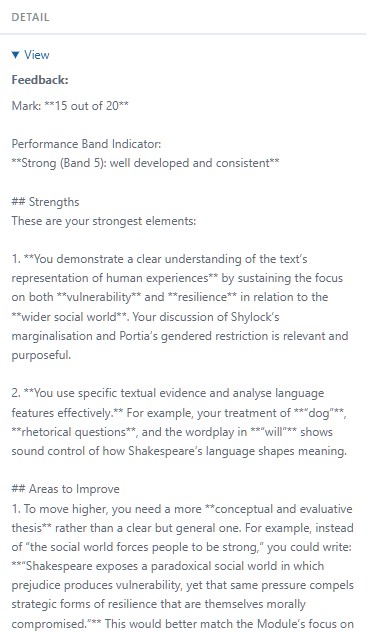
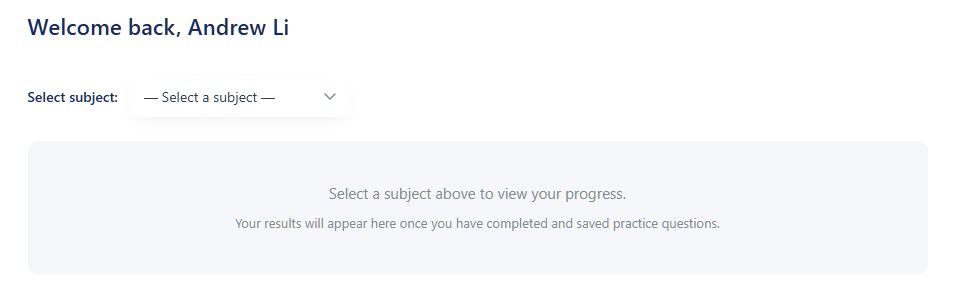
The dashboard is available under My Progress in the header once you’re logged in. It updates automatically each time you save a practice attempt. The screenshots below are from a real student account.
Select your subject
The dashboard starts at the subject level. If you’ve purchased more than one subject, switch between them here. Everything that follows is specific to the subject you select.
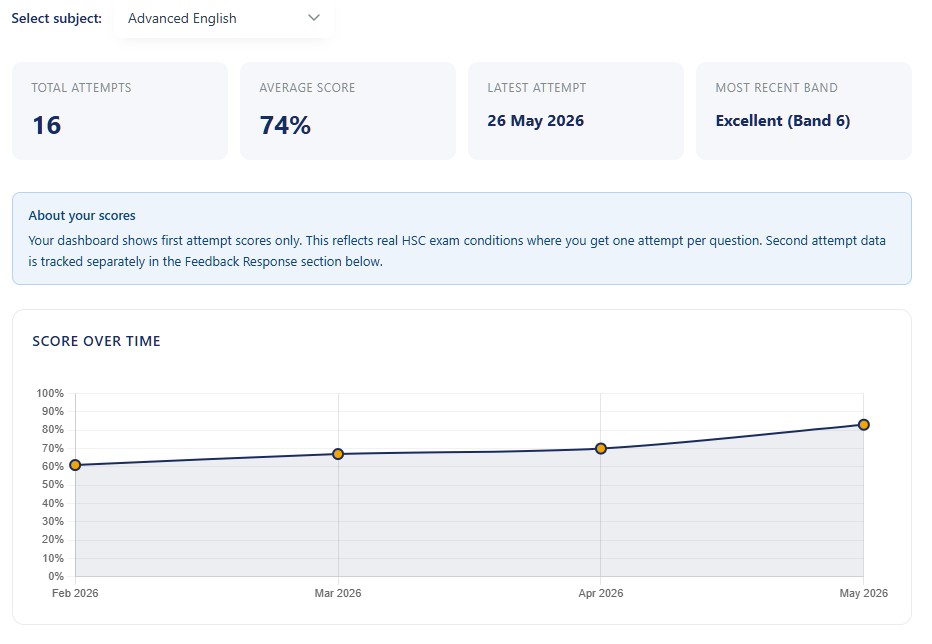
Overall performance by month
Your average percentage score per practice session is shown by month. This is the broad view — useful for tracking whether your general performance is trending up over time. Don’t read too much into a single month’s dip; look for the trend across several months.
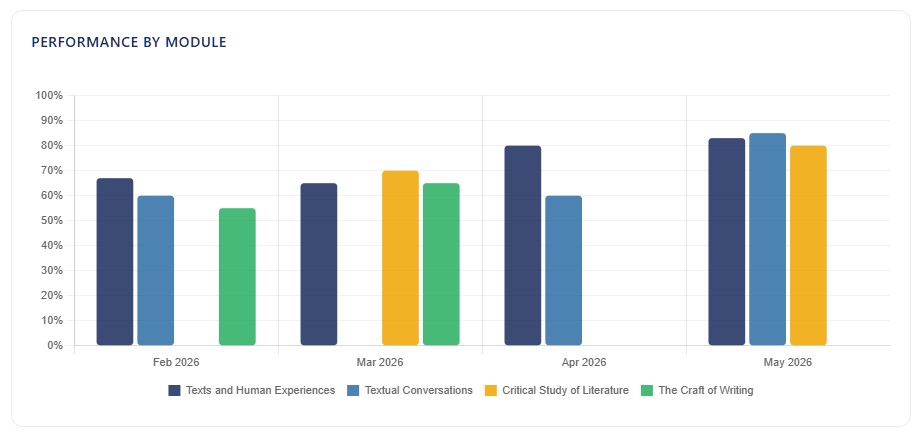
Performance by module over time
This is the most useful view. It shows your average score per module, per month. A gap between modules tells you where to focus. A month with no data for a module tells you that module hasn’t been touched — and that’s worth knowing before the exam.
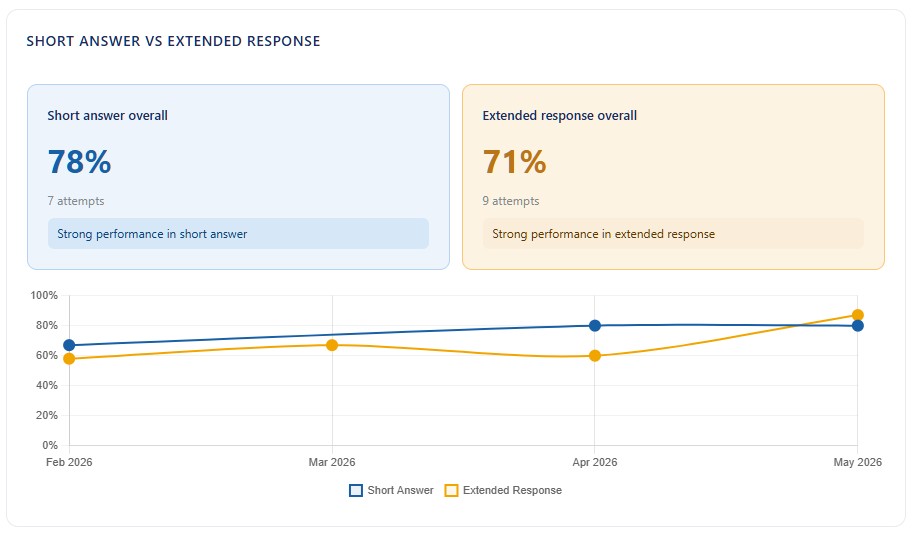
Short answer vs extended response
Many students perform differently across question types. This view shows whether your short answer or extended response performance needs more attention. Keep in mind the marks available in the real exam — if extended responses make up 70% of the marking pool, that’s where your practice time should go.
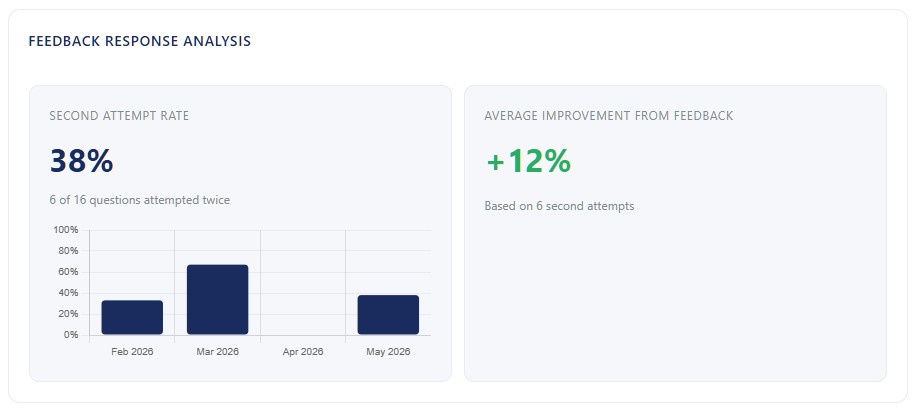
Second attempt improvement
This chart shows how much you improved between your first and second attempt on the same question. It’s a useful indicator of how well you’re absorbing and applying feedback in the moment. Your first attempt remains the primary performance record — the second attempt shows your capacity to improve when given direction.
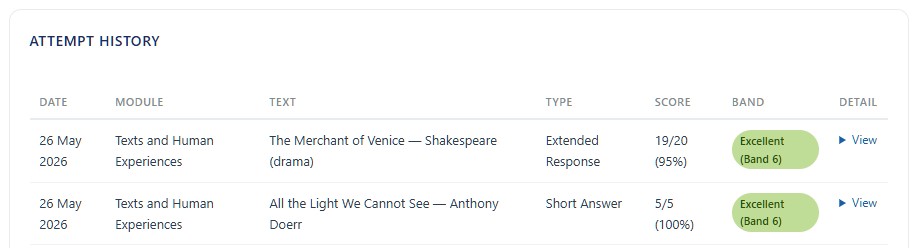
Every attempt, listed
Below the charts, every saved attempt is listed with its date, module, question type, and score. You can see at a glance how often you’re practising and what you’re working on. Click the expand icon next to any attempt to see the full question, your response, and your feedback.
Your full feedback record
Expanding any attempt shows the complete feedback — word for word, exactly as it was generated. This lets you revisit feedback from weeks ago, notice patterns across attempts, and track whether specific weaknesses are being addressed. Your practice history is a learning resource in itself.